The Leads tab has a row of sections across the top: Stages (the pipeline), one section per record book with its count (for example Callbacks, Site Visits, Unit Bookings or Orders), and Catalogue.

Stages

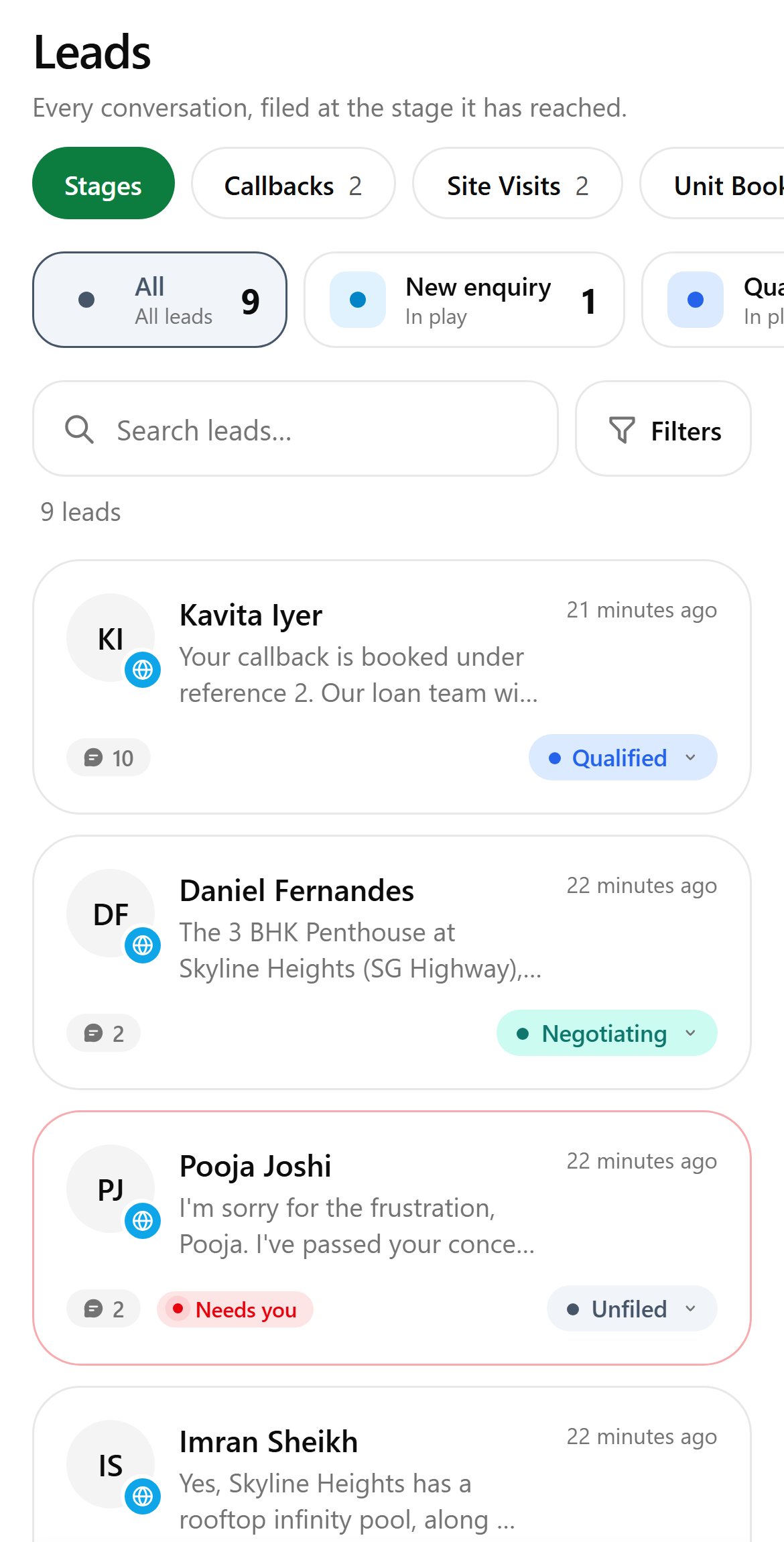
The Leads tab showing stage chips and lead cards
  • Stage chips show how many leads sit at each stage. Tap one to filter; tap it again to go back to All. Not yet reviewed holds chats the follow-up desk hasn’t read.
  • Search leads… and Filters: channel, status and last heard.
  • Each card shows the contact, last message, message count, Needs you if escalated, and a stage pill.
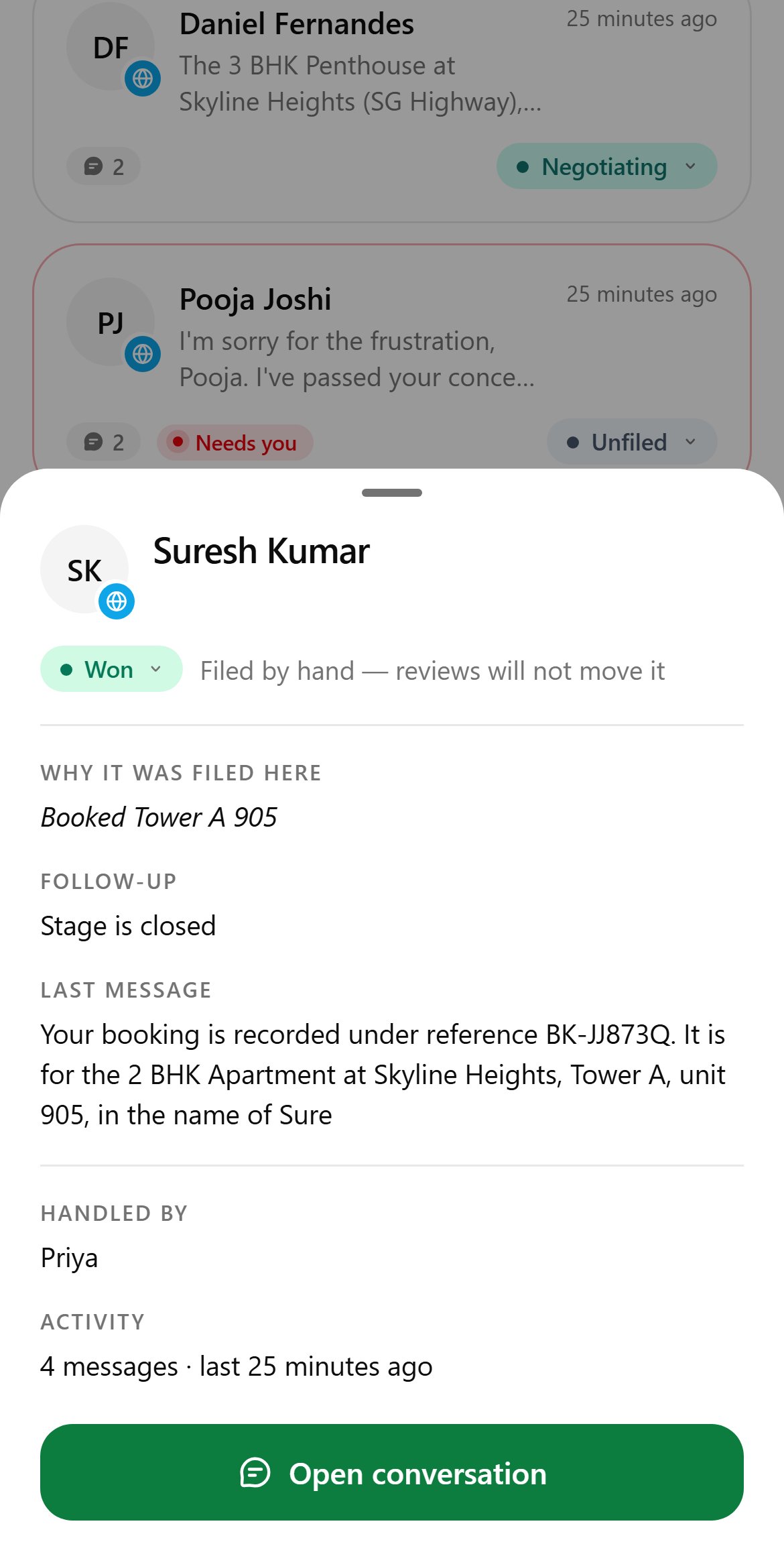
Tap the stage pill to move the lead. Filing by hand pins it, so the follow-up desk won’t move it. Choose Unfiled to let the desk decide again.
The lead sheet for Suresh Kumar, filed at Won
Tap a card to open the lead:
  • why it was filed at this stage;
  • follow-up status (for example Stage is closed or Can still be nudged);
  • the last message, who handled it, activity and follow-ups sent.
Choose Open conversation or Move to a stage.

Record books

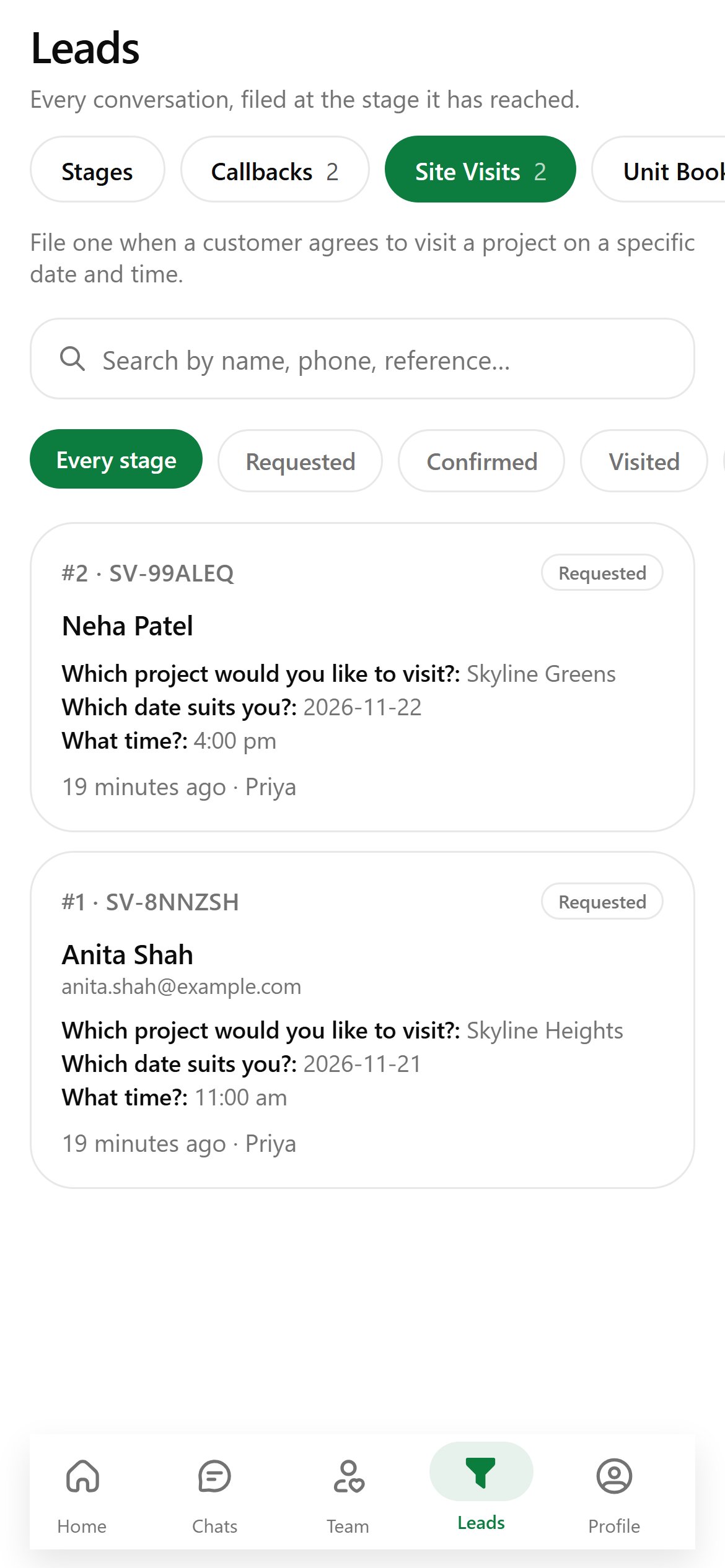
Site Visits: two requested visits filed by Priya
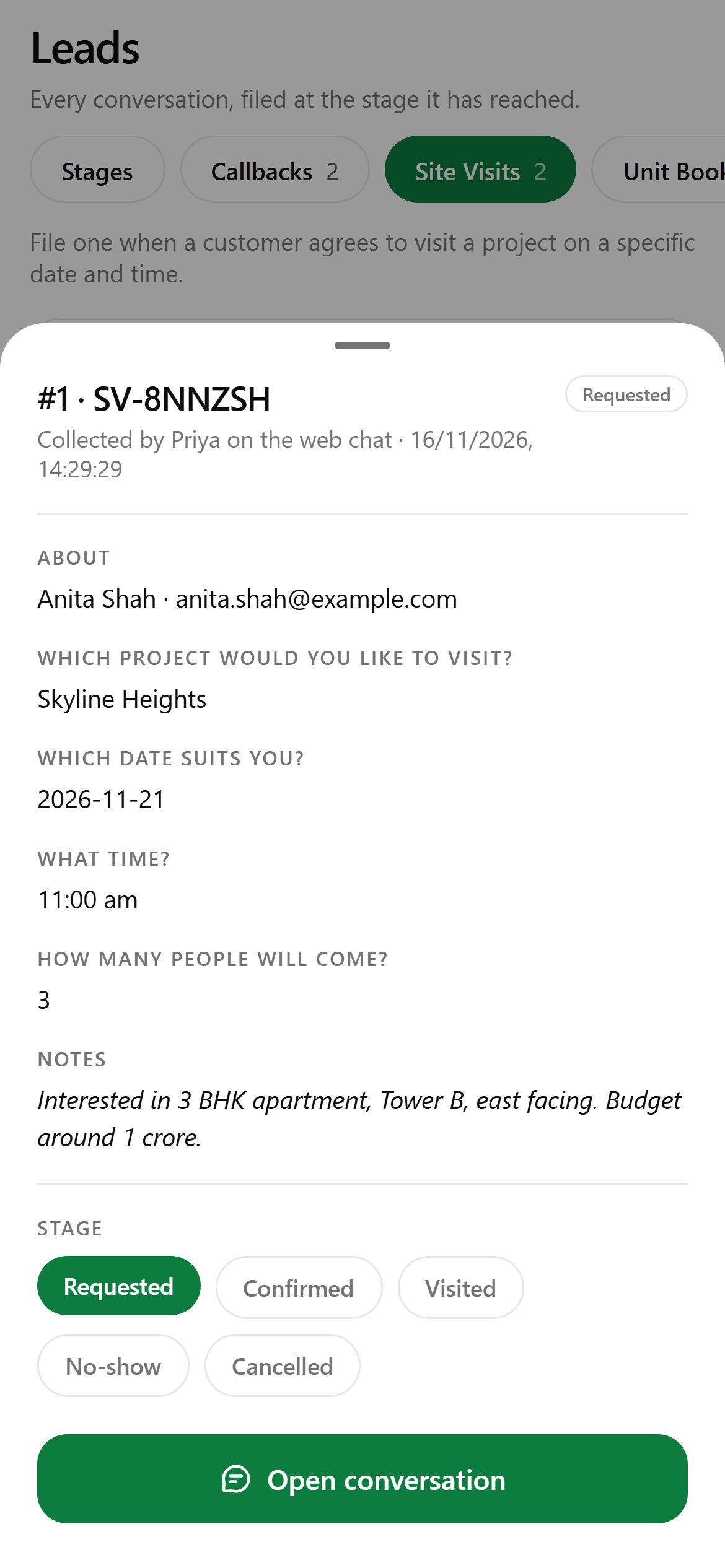
A site visit record with its details and stage chips
Pick a book to see its records. Search by name, phone or reference, and filter by stage. Each card shows the reference, stage, the person and the first details. Tap a record to see every detail and note. Tap a Stage chip to move it, for example from Requested to Confirmed. Open conversation jumps to the chat it came from.

Catalogue

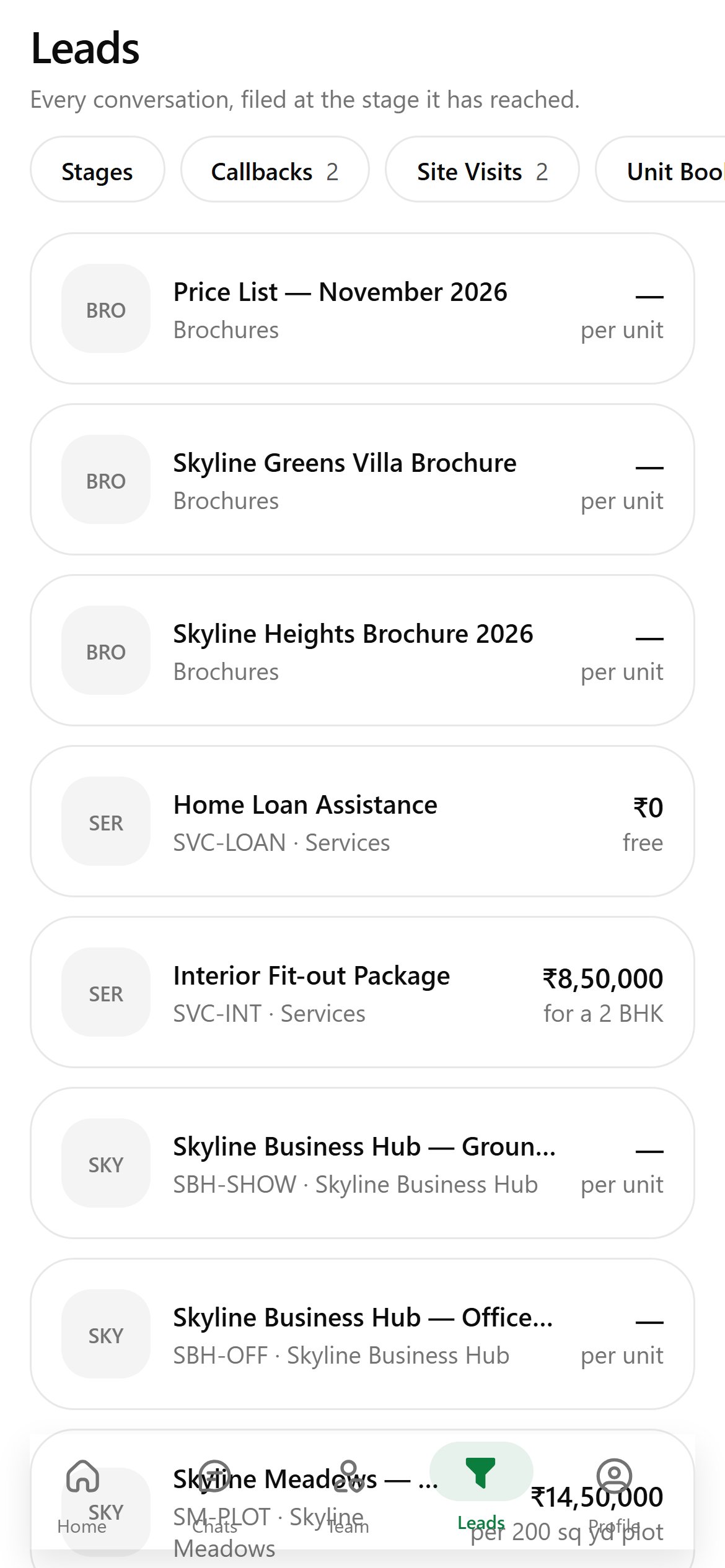
The read-only catalogue with brochures, services and projects
A read-only view of your catalogue, with each entry’s category, price and unit. Tap one to see its pictures, description and tags.Edit the catalogue in the web console.