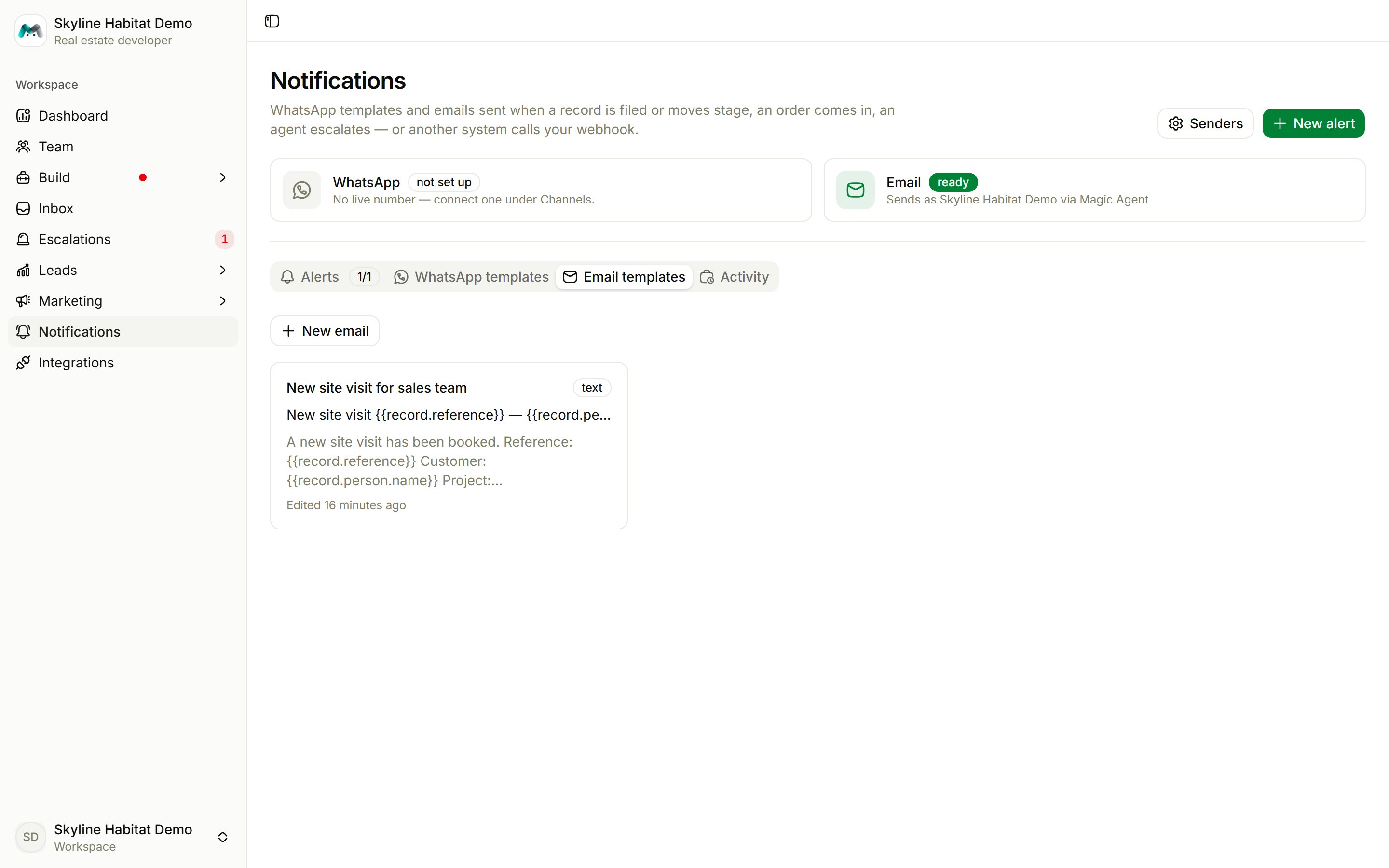
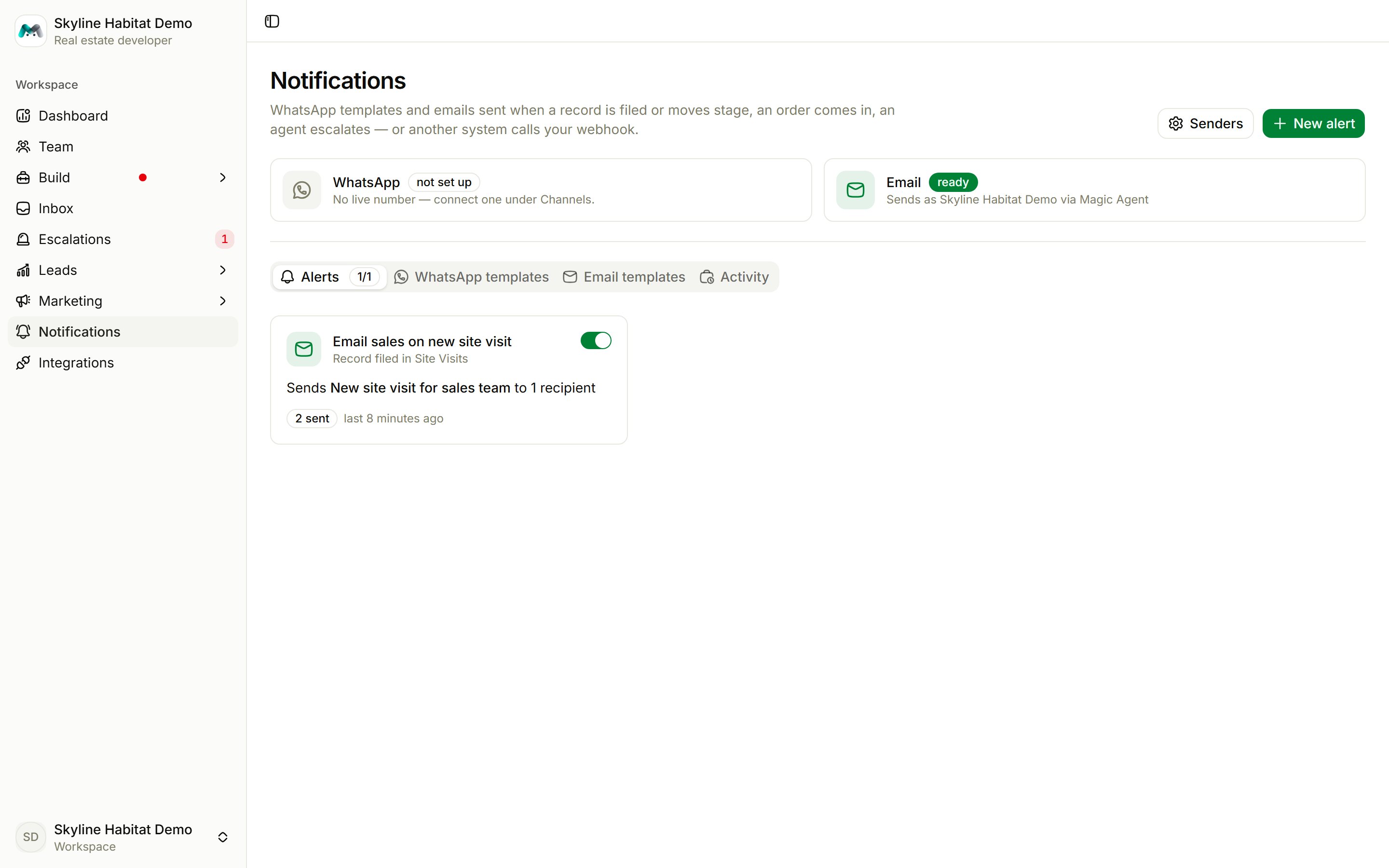
Senders
At the top, two cards show where alerts go out from:- WhatsApp: your connected WhatsApp number. WhatsApp alerts can only send approved templates.
- Email: ready out of the box. Under Senders, set the sender name and reply-to address, and Send a test email.
Create an alert
Choose New alert.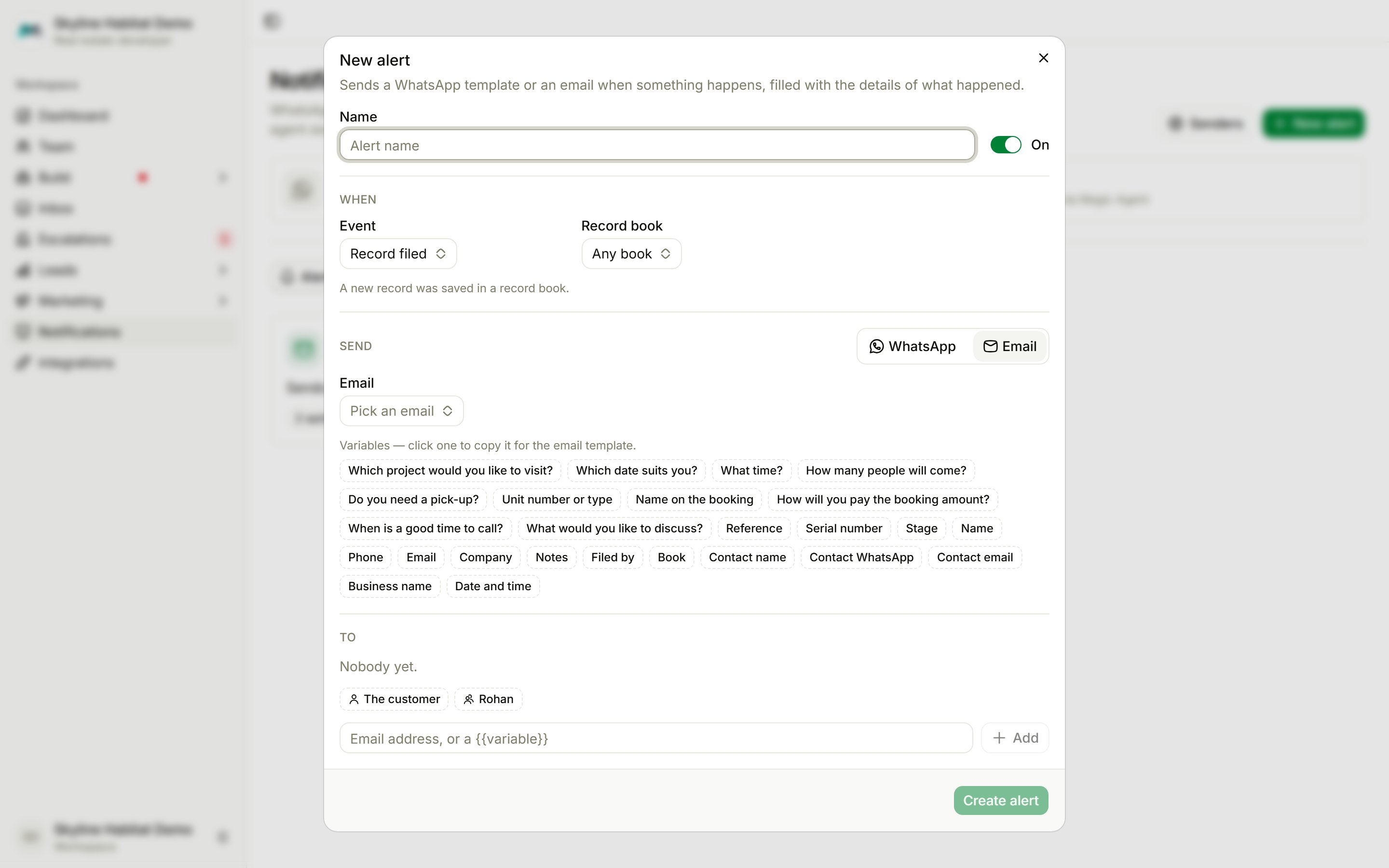
1
Name it
For example “Email sales on new site visit”.
2
Pick the event
3
Choose WhatsApp or email
- WhatsApp: pick a synced, approved template and fill each blank with text or a
{{variable}}from the event. - Email: pick an email template (see below).
4
Choose who gets it
The customer, team members, or numbers and email addresses you type.
5
Save and test
Choose Create alert, then Send test to send it once with made-up details.
Email templates
On the Email templates tab, choose New email and write the Subject and Message in plain text or HTML. Use{{variables}} from the event, for example {{record.reference}}, {{record.person.name}} or {{record.details.visit_date}}. Preview it, then Save email.