
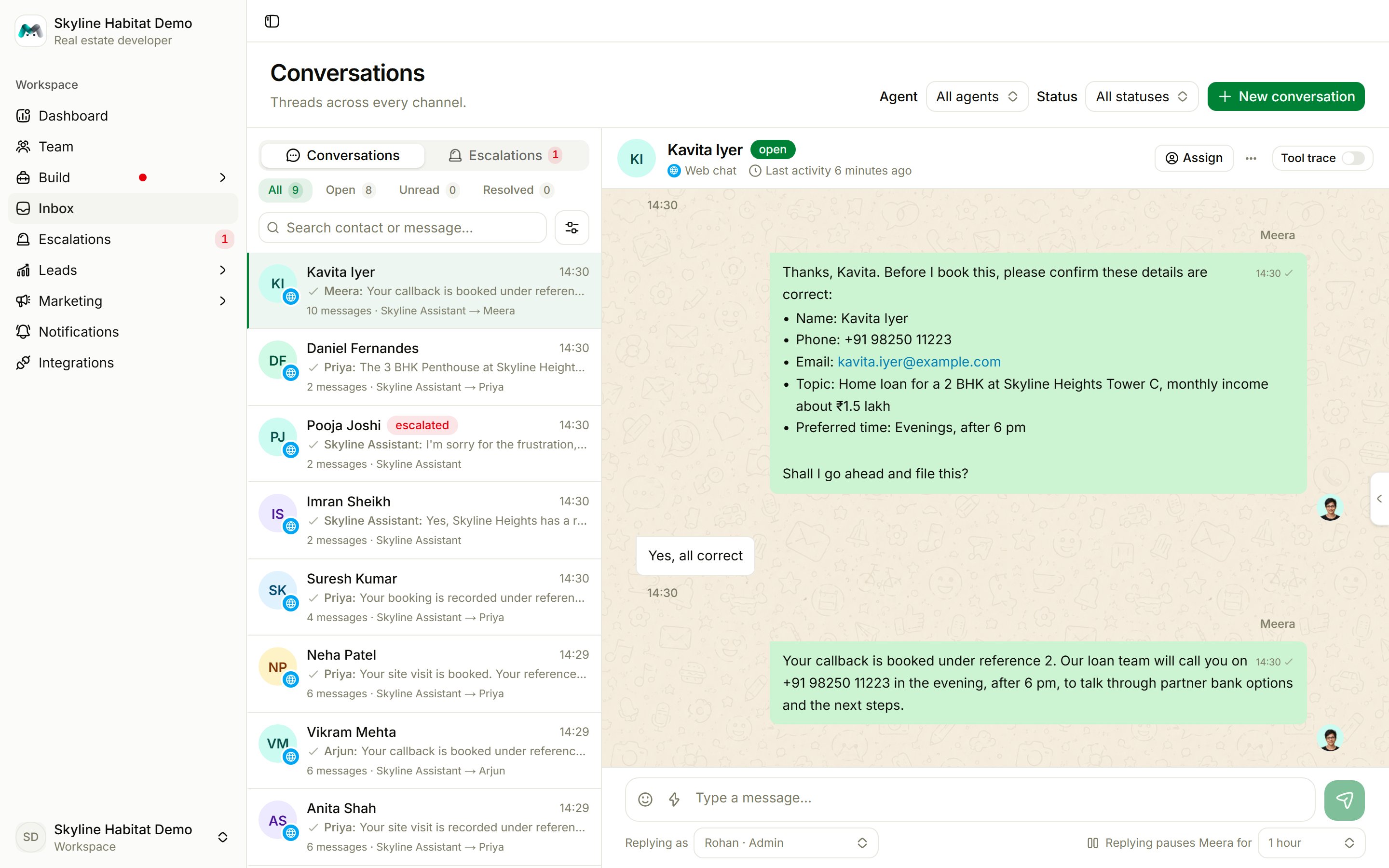
Find a conversation
- Channel chips: all channels, or one.
- Buckets: All, Open, Unread, Resolved.
- Search contact or message…
- Filters: agent, status, channel, Answered by (anyone, your team, the agent), Assigned to, Lead stage, Tag, last message (today, 7 or 30 days), and whether to include bots.
Read a conversation
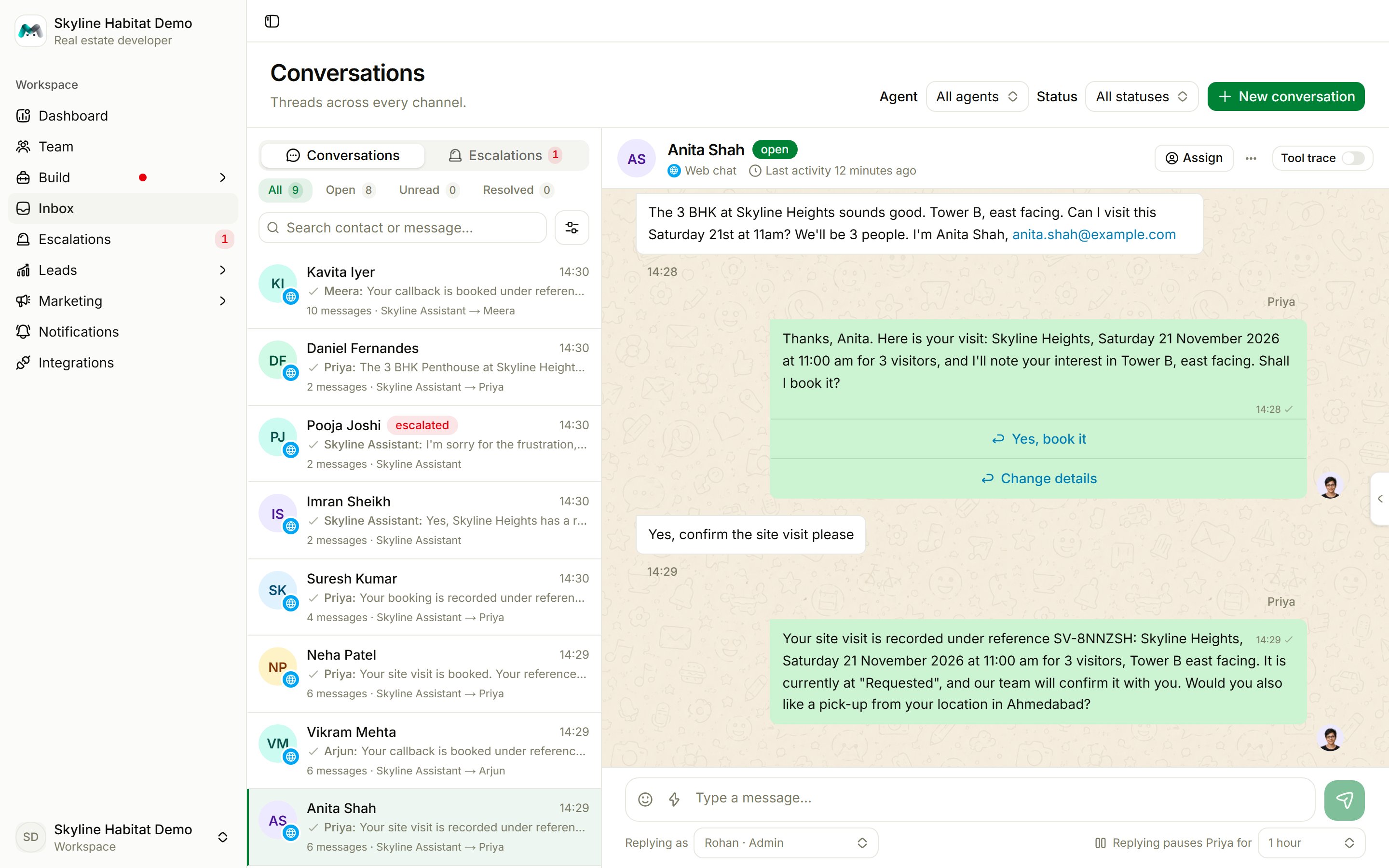
- the contact and status, the channel and last activity;
- the 24-hour reply window countdown for WhatsApp;
- Assign: give the conversation to a team member, or unassign it;
- the thread menu: set the status (open, escalated, resolved), Resume agent now, Mark as bot, Delete conversation (permanent; orders are kept) and the Tool trace switch.
Take over a conversation
You can reply in any conversation at any time:1
Type your reply and send it
Sending a reply takes over the thread. The agent pauses for the time shown beside the box: 15 or 30 minutes, or 1 (the default), 2, 4, 8 or 24 hours.
2
Keep the conversation going
Every reply you send restarts the timer. The header shows You have this thread with the countdown.
3
Hand it back
When the timer runs out, the agent takes the conversation back on its own. To hand it back sooner, choose Resume now.
Send more than text on WhatsApp
The + menu sends a photo (up to 5 MB), video (up to 16 MB), document (up to 100 MB), audio, location, contact card, up to three reply buttons, a list menu, a link button, a request for the customer’s location, or a template message.Mark a wrong answer
Hover over an agent’s reply and choose Mark as wrong. It goes to Knowledge base → Wrong answers, where you write the correct answer once and every agent uses it from then on. See Knowledge base.Details and notes
The right-hand panel (Details and notes) shows:- Pipeline: the conversation’s lead stage and tags, and any records filed from it, each with a stage you can change.
- Contact: phone, email, company and anything the agents saved.
- Notes: notes for your team. Customers never see them.
- Agent: whether the agent is paused and when it answers again.
- This thread: status, start and last activity, message count, which agent it arrived at and who holds it, handovers and follow-up nudges sent.