
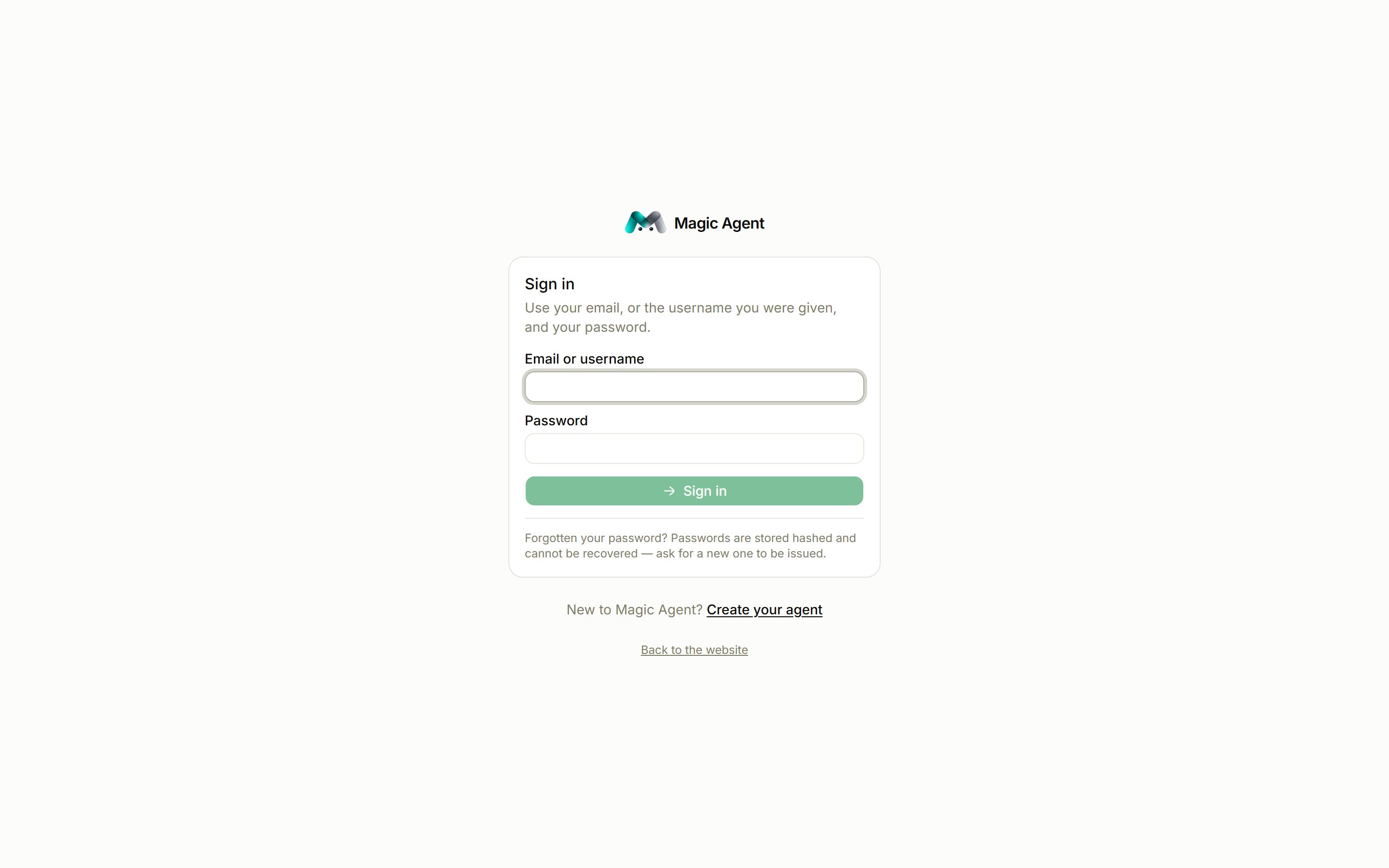
1
Enter your username
In Email or username, type the email address you signed up with, or the workspace ID you were given (for example
skyline-habitat-demo). Team members sign in with their own email.2
Enter your password and press Sign in
If this is the first time you are using an issued password, change it once you are in: open the profile menu at the bottom of the sidebar, then Workspace settings → Access → Change your password. New passwords need at least 12 characters.
3
Enter your two-factor code, if asked
If two-factor authentication is on, type the six-digit code your authenticator app shows for Magic Agent. Lost your phone? Choose Use a recovery code. Each recovery code works once.
One device at a time
A login can be open in one place at a time. If you sign in while the same login is open elsewhere, Magic Agent shows Already signed in elsewhere, with the other device and when it was last active.- Choose Sign out the other device and continue to move the session to this device.
- Choose Cancel to leave the other device signed in.
Forgotten password
Passwords are stored hashed and cannot be recovered. Ask your administrator, or Magic Agent support, to issue a new one. A team member’s password can be reset by the workspace owner from the Team page.Turn on two-factor authentication
Go to Workspace settings → Access → Two-factor authentication:- Choose Set up an authenticator app and scan the QR code with Google Authenticator, Microsoft Authenticator, 1Password or Authy (or type the key).
- Enter the six-digit code and press Turn on.
- Save your recovery codes. Copy or download them, then confirm I have saved them. They are shown only once.