
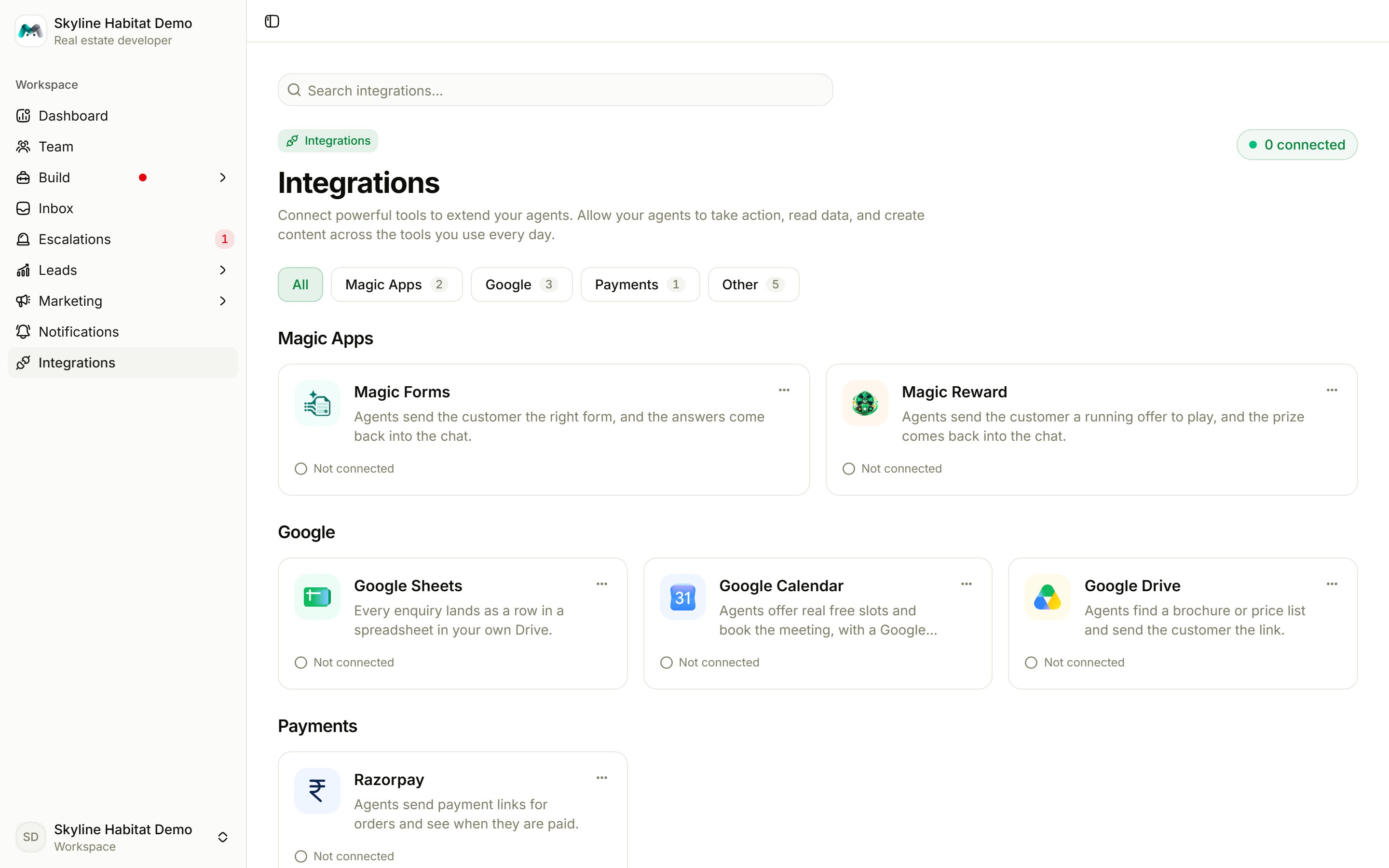
Google Sheets
Every enquiry lands as a row in a spreadsheet in your own Google Drive.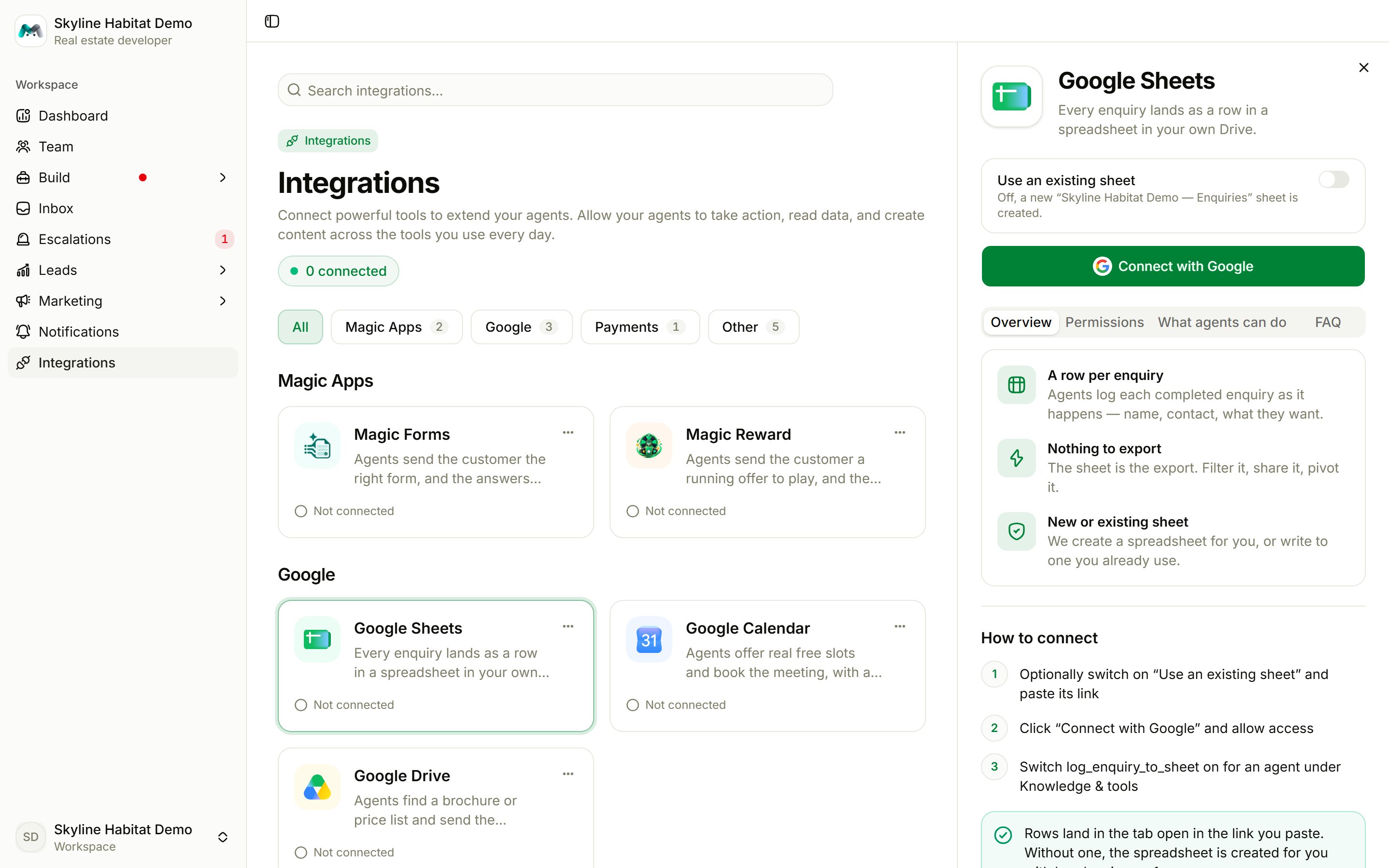
- Optionally switch on Use an existing sheet and paste its link. Otherwise a new “(your company) — Enquiries” sheet is created.
- Choose Connect with Google and allow access.
- Turn on the sheet tool for the agents that should log enquiries.
Google Calendar
Agents offer real free slots from your calendar and book the meeting, with a Google Meet link. Slots are between 9:00 and 18:00 in your workspace timezone. Optionally Email a confirmation. Connect with Google, then turn on the calendar tools for an agent.Google Drive
Agents find a brochure or price list in Drive and send the customer the link. After connecting, put your files in the folder Magic Agent creates. Only that folder and its subfolders are searched.Razorpay
Take payments with payment links.- Enter your Key ID and Key Secret and choose Connect Razorpay.
- In Razorpay, under Webhooks, add the Webhook URL and Webhook secret shown.
- Choose your options:
- Razorpay texts the link
- Razorpay emails the link
- Links expire after 1 to 30 days
- When an order is paid, move it to a stage
Magic Forms
Agents send a form in the chat, and the answers come back into the conversation.- In Magic Forms, open your workspace’s API → Keys and create a key.
- Paste it as the API key and choose Connect.
- Turn on send_form for an agent. Optionally Reply when it comes back.
Magic Reward
Agents send a customer a live offer to play for a prize. Create a key in Magic Reward under Settings → API keys, paste it here, then turn on send_offer for an agent.Other tools
Slack, Zapier, webhooks, Notion, and Claude and ChatGPT are covered by guidance cards that point you to:- a custom tool;
- your webhook settings;
- the AI assistant connector.